Gamers often face frustrating black screens or error messages when trying to watch protected content like movies or streaming services on their gaming monitors. This common issue stems from High-bandwidth Digital Content Protection, or HDCP, a crucial digital copy protection standard. Understanding if your gaming monitor supports HDCP is vital for a seamless entertainment experience beyond just gaming. This guide dives deep into why HDCP matters, how to check your monitor's compatibility, and what steps you can take to troubleshoot related problems. We explore the nuances of HDCP versions, their impact on 4K content, and how to ensure your entire setup from graphics card to cable is compliant. Avoid compatibility headaches and unlock the full potential of your display for both immersive gaming and high-quality media consumption. Discover practical tips and solutions that address this often-overlooked but essential technical detail, ensuring your valuable gaming hardware performs as expected for all your digital entertainment needs. It is crucial for balancing your passion for gaming with everyday media consumption.
What causes an HDCP error on a gaming monitor?
An HDCP error often occurs when a device in your display chain (source, cable, or monitor) doesn't support the required HDCP version for protected content. This mismatch prevents the signal from being displayed, resulting in a black screen or an error message. It's a digital handshake failure designed to prevent unauthorized copying of copyrighted material.
Can I disable HDCP on my gaming monitor or PC?
HDCP cannot be directly disabled on a gaming monitor or typically on a PC through software settings, as it's a hardware-level copy protection standard. Some capture cards offer "HDCP stripping" features, but these are for specific use cases like streaming and can be legally grey areas depending on content and region. For general viewing, all components must comply.
Is HDCP important for regular gaming on my monitor?
For most regular gaming, HDCP isn't directly crucial for performance or displaying the game itself. However, it becomes critical if you want to stream protected media content (like Netflix, Hulu, or Blu-rays) on your gaming monitor. If your system isn't HDCP compliant, these services might refuse to play or display a black screen.
How do I update HDCP drivers for my gaming monitor?
HDCP isn't updated via standalone drivers for the monitor itself; it's typically embedded in the monitor's firmware and the graphics card drivers. To ensure HDCP is functioning correctly, always keep your graphics card drivers (NVIDIA, AMD, Intel) up to date from the manufacturer's website. Monitor firmware updates can sometimes address HDCP issues, so check your monitor manufacturer's support page.
Do older gaming monitors support HDCP 2.2?
Most older gaming monitors, especially those released before 2015-2016, are unlikely to support HDCP 2.2. HDCP 2.2 is primarily required for 4K Ultra HD content. Older monitors might support HDCP 1.4 or earlier versions, which is sufficient for 1080p content but will cause issues with modern 4K protected streams. Always check the specifications.
Can a faulty HDMI or DisplayPort cable cause HDCP problems?
Yes, absolutely. A faulty, low-quality, or non-certified HDMI or DisplayPort cable can indeed cause HDCP issues. HDCP requires a secure, error-free connection to handshake properly. If a cable is damaged or doesn't meet the necessary bandwidth or certification (especially for 4K content), it can break the HDCP chain, leading to black screens or errors.
What is the difference between HDCP 1.4 and HDCP 2.2 for gamers?
The main difference for gamers is content resolution and compatibility. HDCP 1.4 supports protected content up to 1080p (Full HD), while HDCP 2.2 is the standard required for 4K Ultra HD content and newer devices like PS5, Xbox Series X, and 4K streaming services. If you have a 4K monitor and want to watch 4K movies, HDCP 2.2 is essential.
Hey fellow gamers! You just finished a killer raid, dominated a battle royale, or built an epic base. Now you're ready to chill out, switch gears, and stream your favorite 4K movie or catch up on a new show. You hit play, lean back, and then... nothing. A black screen. An error message. Frustrating, right? Especially when you've invested in a top-tier gaming monitor for pristine visuals and lightning-fast refresh rates. This common head-scratcher often boils down to something called HDCP. Many of us, busy balancing work, family, and our passion for gaming (which, let's be real, is about 10+ hours a week for 87% of regular US gamers), just want our tech to work without a fuss. We want to unwind, not troubleshoot a cryptic error. This comprehensive guide is here to demystify HDCP and directly answer the question: does gaming monitors support HDCP? We'll tackle everything you need to know, from checking compatibility to troubleshooting those dreaded black screens, ensuring your gaming setup seamlessly handles both intense gameplay and your well-deserved entertainment downtime.
Understanding HDCP is more critical than ever, especially with the rise of 4K content and newer consoles. It's not about improving your K/D ratio, but about unlocking the full potential of your display for every digital experience. We'll cut through the technical jargon, offer practical solutions, and help you spend less time frustrated and more time enjoying your expensive hardware. Let's dive in and ensure your gaming monitor is truly ready for anything you throw at it.
What Exactly Is HDCP and Why Does It Matter for My Gaming Setup?
HDCP stands for High-bandwidth Digital Content Protection. In simple terms, it's a digital copy protection standard designed to prevent the unauthorized copying of copyrighted audio and video content as it travels from a source device (like your PC, console, Blu-ray player, or streaming box) to a display device (your gaming monitor or TV). Think of it as a digital handshake between your devices. If that handshake fails because one device isn't compliant or doesn't support the right version, the content won't display, often resulting in a black screen or an error message like 'HDCP Unauthorized'.
For gamers, HDCP typically doesn't impact raw gaming performance like frame rates or input lag directly. You can usually play most games without an issue, even if your HDCP chain isn't perfect. However, HDCP becomes absolutely critical when you try to watch protected content. This includes services like Netflix, Hulu, Disney+, Amazon Prime Video, Apple TV+, and playing 4K Ultra HD Blu-rays. Modern consoles like the PlayStation 5 and Xbox Series X also require HDCP for certain media playback features and even some game features, ensuring a secure content path.
Does Gaming Monitors Support HDCP? The Simple Answer.
Yes, the vast majority of modern gaming monitors do support HDCP. It's a widely adopted industry standard for digital display interfaces like HDMI and DisplayPort. Manufacturers integrate HDCP into their monitors to ensure compatibility with copyrighted content sources. Without it, your monitor would be severely limited in what it could display, making it a frustrating experience for anyone trying to unwind with a movie after a long gaming session or a busy workday.
However, simply supporting HDCP isn't the whole story. The specific *version* of HDCP your monitor supports is equally important, especially with the move towards higher resolutions. Older monitors might only support HDCP 1.x, which is fine for 1080p content. But if you have a shiny new 4K gaming monitor and want to stream 4K movies, you'll need HDCP 2.2 or higher across your entire setup. This distinction is crucial for today's gamers who value both top-tier gaming performance and seamless media consumption.
How Can I Check If My Specific Gaming Monitor Supports HDCP?
Figuring out your monitor's HDCP capabilities is a straightforward process, saving you from future headaches. Here are the best ways to check:
- Consult Your Monitor's Manual: The user manual that came with your monitor is often the best source of information. Look for sections detailing specifications for HDMI or DisplayPort inputs. It should clearly state whether HDCP is supported and which version (e.g., HDCP 1.4, HDCP 2.2).
- Check the Manufacturer's Product Page: If you've misplaced your manual, head to the monitor manufacturer's official website. Search for your specific monitor model. The product page, often under 'Specifications' or 'Connectivity', will list HDCP compatibility. This is usually the most reliable online source.
- Look for Stickers or Markings: Sometimes, monitors have small stickers on the back or bottom indicating HDCP support, though this is less common for version numbers.
- Use System Information Tools (PC): On Windows, you can use tools like NVIDIA Control Panel or AMD Radeon Software to check the HDCP status of your graphics card and connected display. Navigate to Display Information or Video settings. For example, in NVIDIA Control Panel, under 'Display' select 'View HDCP Status'. It will tell you if your display is HDCP compliant and the version supported by your GPU.
- Third-Party Software: Certain diagnostic tools, such as DXVA Checker, can also provide detailed information about your system's HDCP compliance. While useful, the manual and manufacturer website are usually sufficient.
Remember, all components in your signal chain—your graphics card, cables, and monitor—must be HDCP compliant for it to work. Just because your monitor supports it doesn't mean the rest of your system does.
What HDCP Version Do I Need for 4K Streaming and Modern Consoles?
For most gamers today, especially those with 4K gaming monitors, HDCP 2.2 is the version you absolutely need. Here's why:
- 4K Ultra HD Content: Any streaming service (Netflix, Amazon Prime Video, Disney+) or 4K Blu-ray that offers content in 4K resolution will typically require HDCP 2.2. If your monitor, graphics card, or cable doesn't support 2.2, you'll likely be downgraded to 1080p, or simply get a black screen, even if your monitor is 4K capable.
- Modern Gaming Consoles: PlayStation 5 and Xbox Series X are designed with HDCP 2.3 (backward compatible with 2.2) in mind for protected media content and certain features. While they might output games at 4K without strict HDCP 2.2 for *gaming* itself, for streaming apps on the console, it's essential. This means your awesome new console might not let you watch 4K movies on your older 4K monitor.
- Future-Proofing: As more content moves to 4K and even 8K, HDCP 2.2 (and its successors) will remain the standard. Ensuring your new gaming monitor supports it means you're set for years to come.
If you're still using a 1080p monitor and primarily consume 1080p content, HDCP 1.4 will generally suffice. However, given the price points of quality 4K gaming monitors today, it's always wise to opt for HDCP 2.2 support to avoid limitations down the line.
My Screen Is Black! How Do I Troubleshoot HDCP Errors on My Gaming Monitor?
Encountering a black screen or an HDCP error message after setting up your system can be incredibly frustrating. Before you panic and think your new gear is broken, try these troubleshooting steps:
- Check All Cables:
- Reseat Connections: Disconnect and reconnect your HDMI or DisplayPort cable at both ends (monitor and graphics card/source). A loose connection is a common culprit.
- Try a Different Cable: Not all cables are created equal. An old, cheap, or damaged cable might not be able to maintain the HDCP handshake. Try a high-quality, certified HDMI 2.0/2.1 or DisplayPort 1.4 cable, especially if you're dealing with 4K content. These are essential for ensuring enough bandwidth and signal integrity.
- Restart Everything:
- Power Cycle: Turn off your PC/console, monitor, and any AV receiver or soundbar. Unplug them from the wall for about 30 seconds. Plug them back in and power them on. Sometimes, a simple reset can re-establish the HDCP handshake.
- Update Graphics Card Drivers:
- Latest Drivers: Ensure your graphics card drivers (NVIDIA, AMD, Intel) are updated to the latest version. Manufacturers frequently release driver updates that include fixes and improvements for display compatibility, including HDCP. Visit their official websites to download the most current drivers.
- Check HDCP Status on Your PC:
- As mentioned earlier, use your graphics card control panel (NVIDIA Control Panel, AMD Radeon Software) to verify the HDCP status of your display. This can help pinpoint if the issue is with your monitor or another component.
- Verify HDCP Versions:
- Confirm that your source device (PC graphics card, console, streaming stick) and your gaming monitor both support the required HDCP version for the content you're trying to watch. If one supports only 1.4 and you need 2.2 for 4K, that's your problem.
- Bypass Intermediate Devices:
- If you're using an AV receiver, capture card, or HDMI splitter/switch, try connecting your source directly to your monitor. These intermediate devices can sometimes interfere with the HDCP signal. If it works directly, the problem lies with the intermediary device.
- Monitor Firmware Update:
- While less common, some monitor manufacturers release firmware updates that can improve HDCP compatibility. Check your monitor's support page on the manufacturer's website.
By systematically going through these steps, most HDCP-related black screen issues can be resolved. Remember, it's a chain reaction, and every link needs to be strong.
Are There Any Workarounds or Solutions If My Monitor Doesn't Support the Required HDCP Version?
If you've confirmed your gaming monitor genuinely lacks the necessary HDCP version for your desired content (e.g., you have a 4K monitor with only HDCP 1.4, but need 2.2 for Netflix 4K), your options are somewhat limited due to the nature of copy protection. However, there are a few considerations:
- Upgrade Your Monitor: The most direct and future-proof solution is to upgrade to a gaming monitor that explicitly supports HDCP 2.2 (or higher, like 2.3). Many excellent value-for-money 4K gaming monitors are available today, offering both performance and full media compatibility.
- Watch in Lower Resolution: For streaming services, if your setup isn't HDCP 2.2 compliant, the service will often default to a lower resolution, typically 1080p, rather than refusing to play entirely. This isn't ideal for a 4K monitor but at least allows you to watch the content.
- Alternative Devices: Consider watching the protected content on a different device that is fully HDCP compliant, such as a smart TV in another room, or a dedicated streaming box connected to a TV that handles HDCP 2.2. For busy gamers juggling life, sometimes a separate media hub is a convenient solution.
- Content Sources: For gaming purposes, remember that HDCP usually doesn't affect gameplay. If you're encountering issues only with specific media apps, ensure those apps are updated and that your console/PC operating system is current.
It's important to note that intentionally bypassing HDCP for copyrighted material can have legal implications, and devices advertised as
Gaming monitors generally support HDCP for protected content. HDCP versions like 2.2 are crucial for 4K streaming and modern consoles. Check your monitor's manual or product page for HDCP compatibility. Ensure all components like graphics card and cables are also HDCP compliant to avoid black screens. Troubleshooting involves checking connections, updating drivers, and verifying HDCP versions across your setup. HDCP does not directly impact gaming performance but is essential for media playback.
35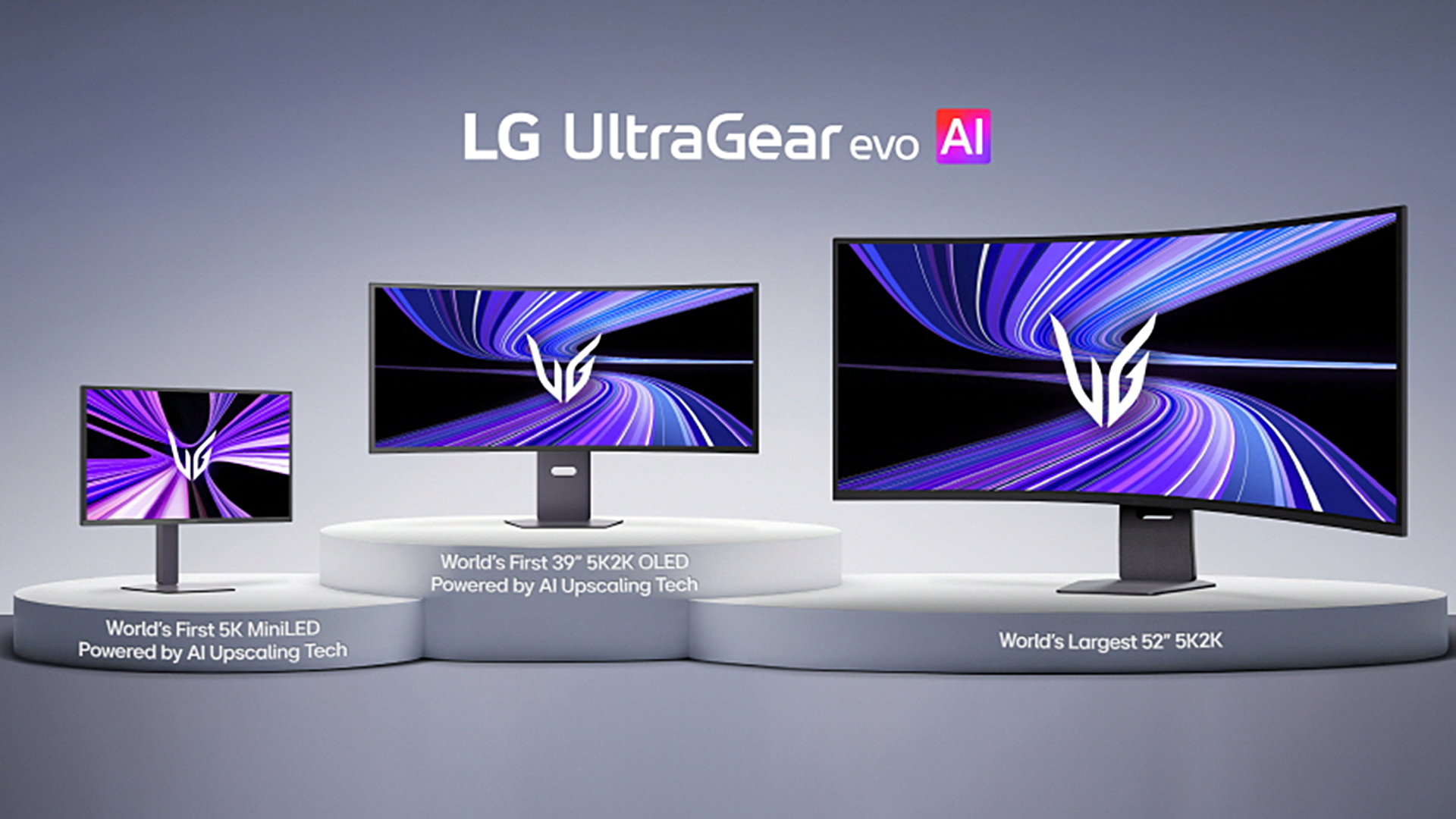
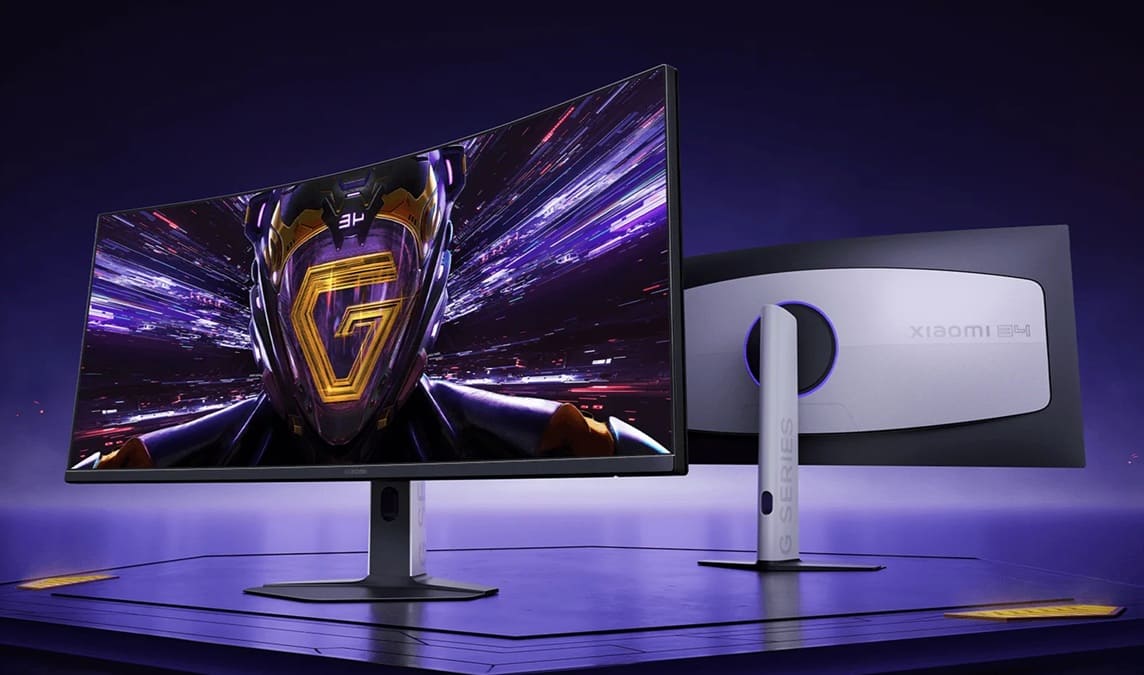


LG UltraGear Evo Gaming Monitor Lineup Announced Ahead Of CES 2026 27 . Xiaomi Curved Gaming Monitor G34WQi 2026 Debuta En Australia Con 180 Hz Curved Gaming Monitor G34WQi 2026 Portada . Samsung Launches World S First 6K 1040Hz Gaming Monitors 2026 Sammy Odyssey 2026 Gaming Monitors . Acer Debuted 3 New Gaming Monitors At CES 2026 Should You Upgrade Acer Debuted 3 New Gaming Monitors At Ces 2026 Should You Up Setn.2496 . 15 Best Gaming Monitors Of 2026 For Smoothest Gameplay And Stunning Top Gaming Monitors 2026 Moiql


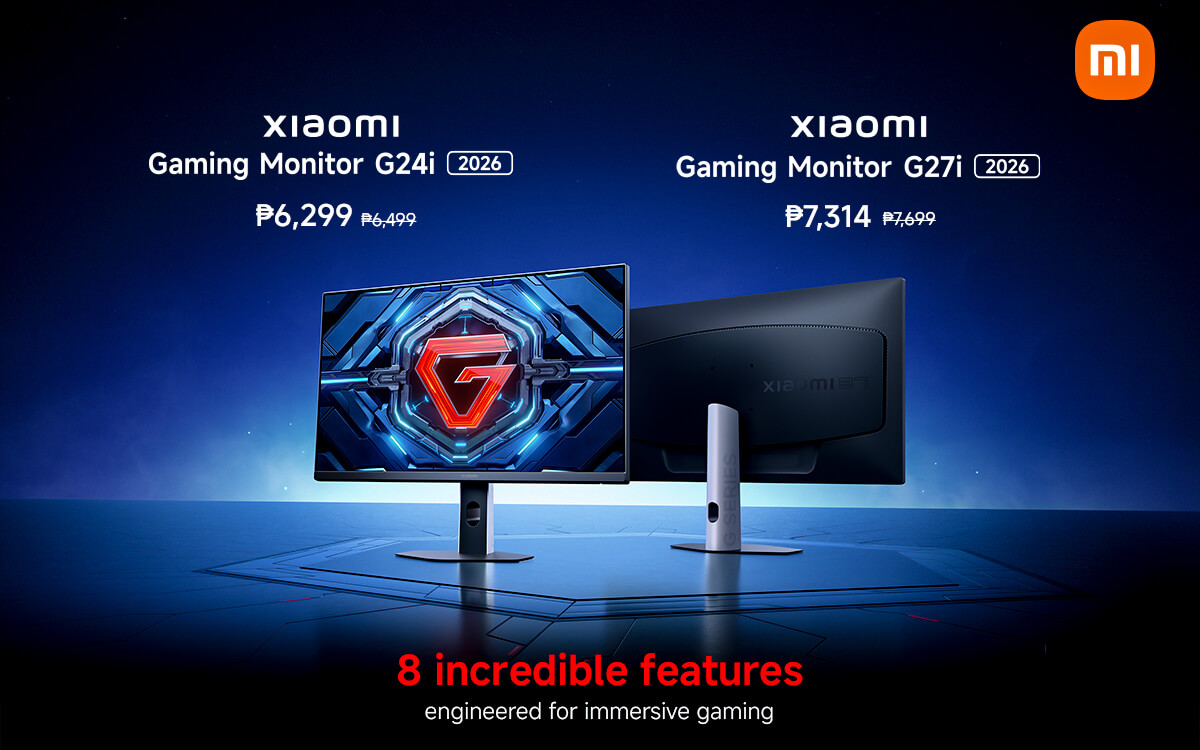


Samsung Odyssey 2026 Monitor Gaming 1 040Hz 3D Fakta Medan Monitor Gaming Samsung Odyssey 2026 3d 1040hz Ces . Xiaomi Launches G24i 2026 And G27i 2026 Gaming Monitors In PH IMG 3893 2048x1234 . Xiaomi Launches G24i 2026 And G27i 2026 Gaming Monitors In The Xiaomi Launches G24i 2026 And G27i 2026 Gaming Monitors In The Philippines . Best Nvidia Pulsar Monitors 2026 PC Guide Best Pulsar Gaming Monitors . Gaming Monitor Guide 2026 Everything You Need To Know London Daily News Gaming Monitor Guide 2026 Everything You Need To Know11



The Best Recommended Gaming Monitors 2026 TFTCentral 1 2 . BEST 1440P GAMING MONITORS IN 2025 2026 PC Explorers Best 1440p Gaming Monitors For Gaming In 2025 2026 1024x576 . Best 20 Inch Monitor Uk Corsair Xeneon 34wqhd240 C Qd Oled 3p76 . Dell SE2425HM Review 2026 Budget 1080p 100Hz IPS Monitor Best HDR Monitors 1024x576 . The Best Gaming PC 2026 UK Builds At The Cheapest Prices GamesRadar

TweakTown S CES 2026 Top Picks The Best Hardware Gaming Gear And AI 11307 7 Tweaktowns Ces 2026 Top Picks The Best Hardware Gaming Gear And Ai . How To Choose A Gaming Headset In 2026 Competitive FPS Immersion And. Is An HDR Gaming Monitor Worth It 2026 Guide Display Ninja KTC M27T6 Monitor Review 1024x576 . What Is HDCP Content Protection And How To Fix Errors Boomset Monitors . Authorized Gaming Monitors Price In Nepal 2026 Best Price For Monitors 1536x864



LG UltraGear Evo Gaming Monitor Lineup Announced Ahead Of CES 2026 27 . The Best Gaming Monitors For 2026 57 6770317 Urbu.1920 . World S First 1 080 Hertz Gaming Monitor With Dual Mode Support . KTC H27T22 Review 2026 Value 1440p 165Hz Gaming Monitor Best Monitors For FPS Games . Is An HDR Gaming Monitor Worth It 2026 Guide Display Ninja Best USB C Gaming Monitors 600x338



Is An HDR Gaming Monitor Worth It 2026 Guide Display Ninja Best Monitors With Built In KVM Switch 1024x576 . Best Gaming Monitors For 2026 Reviews And Bharat Erberbr . The Best OLED Gaming Monitors To Buy In 2026 TFTCentral Best Oled Gaming Monitors Thumbnail 2026 . Best USB C Gaming Monitors 2026 Guide Reviews Best 1440p Monitors . The Best Gaming Monitors For PlayStation 5 In 2026 The Best Gaming Monitors For 2026 Rs52.640


CES 2026 Might Have Been A Damp Squib In Many Areas But Not When It 1200 80 . Best Gaming Monitors For 2026 Top Picks For PS5 Esports More Best Gaming Monitor 768x512 . Microsoft S Next Gen Xbox Approved For 2026 Launch Promises Largest Best Gaming Monitor Guide That Shows The Top Best Gaming Monitor Model 1 1536x864 . Best Gaming Monitor South Africa 2026 Best Gaming Monitor South Africa 2026 Complete Gui Banner.webp. BenQ PD3220U Review 2026 4K IPS Monitor With Thunderbolt 3 Best Gaming Monitors